

Keyboards

Logitech POP Keys

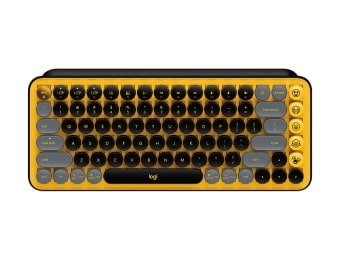
The Logitech POP Keys is one of the most visually distinct keyboards on the market

1.best Logitech POP Keys Style

The Logitech POP Keys is a joy to look at and a lot of fun to use if you love clicky, tactile keyboards. It nails the desk aesthetic perfectly and functions seamlessly across multiple devices.

The Logitech POP Keys is one of the most visually distinct keyboards on the market. In its Cosmos colorway, it swaps boring office gray for a striking mix of deep purples, lavender, and mint accents.

However, behind its retro-typewriter aesthetic lies a highly modern, multi-device productivity tool. Here is an honest review breakdown of what it’s like to type on the POP Keys day in and day out.

logitech pop keys yellow 1 opt

  • Specification

Number of Keys:

96

Connectivity:

Bluetooth+Logi Bolt USB Receiver

Key Switch Type:

TTC Brown

Key Backlighting:

None

Power:

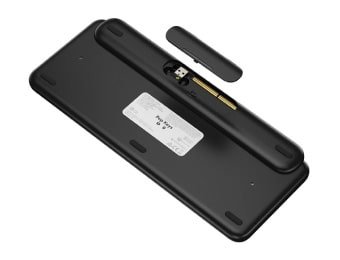
36 months from 2xAAA batteries

Weight:

779 g with 2xAAA batteries

2. Ergonomic

.

🚀 The Pros (Where it Shines)

That said, it prioritizes style over pure typing speed. The round, tightly packed keys create a steep learning curve that will cause plenty of typos during your first week

cameron williamson pic

Cameron Williamson

The Clicky Mechanical Feel: Unlike mushy laptop keys, the POP Keys uses TTC Brown mechanical switches. They give you a highly satisfying, tactile bump and a distinct “clack” every time you press a key. It feels robust and makes typing feel like an event.

Customizable Emoji Keys: On the right-hand side sits a dedicated column of 4 emoji keys, plus an extra menu key. The keyboard comes with 8 swappable physical emoji keycaps in the box. Using the Logi Options+ software, you can map these to your most-used reactions (or remap them entirely to productivity shortcuts like mute or screenshot).


logitech-pop-keys-1


logitech-pop-keys-2


logitech-pop-keys-3

logitech pop keys 4 opt

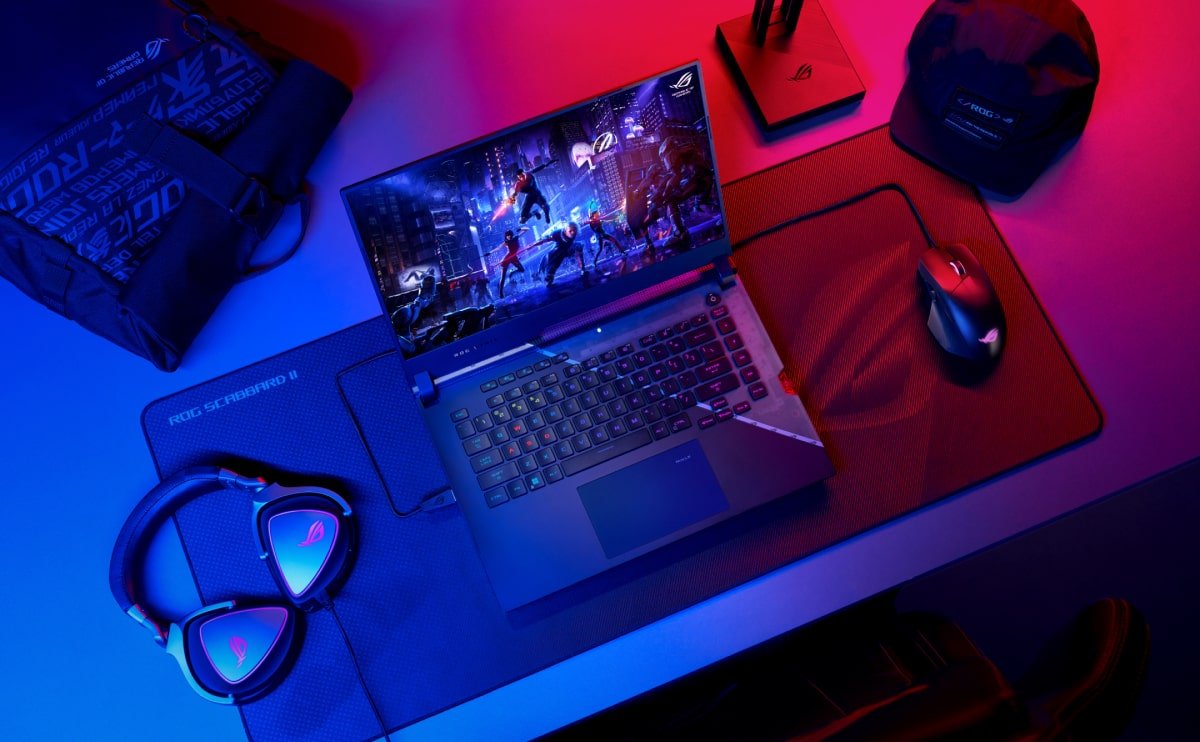
3. About Gaming Laptops

Flawless Multi-Device Connectivity: You can pair the keyboard with up to three separate devices simultaneously (Mac, Windows, iPad, Android, or ChromeOS) via Bluetooth or the included Logi Bolt USB receiver. Switching between your work laptop and personal tablet takes a single tap of the F1, F2, or F3 keys.

switch sound play

As it sounds

4. Connectivity

Bluetooth+USB Receiver

Incredible Battery Life: Running on two standard AAA batteries, Logitech claims the POP Keys will last up to 36 months before needing a swap. No charging cables cluttering your desk is a huge plus

⚠️ The Cons (The Compromises)

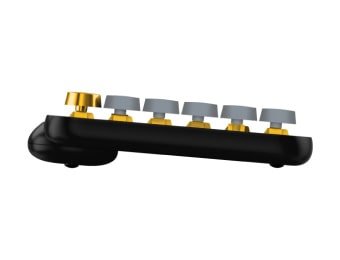
  • The Round Key Learning Curve: Standard keyboards use slightly concave, square keys that naturally guide your fingertips to the center. The flat, round typewriter keys on the POP Keys leave wider gaps between them. If you are a fast touch-typer, you will frequently clip the edges of adjacent keys at first.

Connect to three devices at once

  • No Backlighting: There are no LEDs under these keys. If you frequently work or game in a pitch-black room, you will find it incredibly difficult to see what you are doing.

  • It is Quite Loud: While Brown switches are technically quieter than Blue switches, the hollow plastic chassis echoes the sound. It is loud enough to annoy coworkers in a quiet open-plan office or be picked up clearly by a sensitive microphone during Zoom calls.

  • Heavy and Thick: Because it is designed to stay stable on your desk without sliding around, it is surprisingly heavy. Combined with its thick profile, it isn’t ideal for throwing into a backpack as a portable travel companion.

logitech pop keys end opt
reasons to buy

Reasons to buy

  • Vibrant color options
  • Excellent battery life
  • Can sync with up to three devices

reasons to avoid

Reasons to avoid

  • Emoji buttons are cute but ultimately feel unnecessary
  • Limited customization
  • Round keycaps make typing tough

5. Conclusions

📊 Feature Breakdown

Feature Specs & Experience
Form Factor Compact 75% Layout (No Numpad)
Switch Type TTC Brown Mechanical (Tactile & Clicky)
Connectivity Bluetooth Low Energy + Logi Bolt USB Receiver
OS Layout Dual-printed keycaps (Both Windows and Mac commands)
Software Support Logi Options+ (For custom emoji assignment)

Is it worth buying?

  • Buy it if: You want a gorgeous, colorful desk setup, you love the loud, tactile feedback of mechanical typing, and you frequently chat using emojis or switch between multiple computers.

  • Skip it if: You write data-heavy spreadsheets all day (you’ll miss the numpad), you need a whisper-quiet keyboard for shared spaces, or you value typing ergonomics over style.

logitech pop keys shop

Logitech POP Keys


Shop Now

How do you customize the emoji keys on the Logitech POP Keys using the Logi Options+ software?

🛠️ Step-by-Step Customization

Customizing the dedicated emoji row on the Logitech POP Keys is done through Logitech’s companion app, Logi Options+.

The process is highly visual and lets you assign specific emojis, custom actions, or system shortcuts to the five dedicated keys on the far-right column of the keyboard.

Before starting, make sure your keyboard is turned on and actively connected to your computer via Bluetooth or the Logi Bolt USB receiver.


1.Download and Open Logi Options+:Prerequisite.

Launch the Logi Options+ application. If you don’t have it installed, download the official software directly from Logitech’s website (available for Windows and macOS).

2.Select Your Device:Home Screen.

On the main device dashboard, you will see a visual layout of your connected Logitech gear. Click directly on the image of your POP Keys keyboard.

3.Enter the Keys Menu:Sidebar Navigation.

Look at the left-hand sidebar menu and click on the “Keys” tab. This will bring up an interactive, top-down image of your keyboard highlighting all the customizable buttons.

4.Select an Emoji Key:Mapping Zone.

Click on any of the four emoji keys or the bottom emoji menu key on the screen’s right column. A circular highlight will indicate which key you are currently editing.

5.Choose Your Action:Side Panel Selection.

A sliding menu will open on the right side of the screen displaying action categories.

  • To pick an emoji: Click “Emoji” and browse or search the visual grid to select your favorite icon.

  • To pick a shortcut: Select categories like “System” (e.g., Mute Microphone, Screenshot) or “Smart Actions” to create automated macros.


💡 Pro Tips for Better Customization

  • Physical Customization: Don’t forget to pop off the physical keycap and replace it with the matching emoji cap included in your original retail box so your hardware aligns with your new software choice. They pull straight up off the switches with a simple tug.

  • App-Specific Profiles: In the top-right corner of the Logi Options+ window, you can click “Add Application.” This allows you to make the emoji keys function as regular emojis in messaging apps (like Slack or WhatsApp), but automatically change into productivity shortcuts (like “Undo” or “Copy/Paste”) when you open software like Adobe Photoshop or Microsoft Excel.

  • The Global Emoji Menu Key: The very bottom key in the column (marked with a general emoji icon) is mapped by default to open the OS system emoji panel (Windows Key + . on PC, or Cmd + Ctrl + Space on Mac). Leaving this one stock is highly recommended, as it gives you quick access to the thousands of emojis not physically printed on your keyboard.

Rootinfo Admin

Rootinfo.net is a digital platform focused on the tech industry, primarily known for publishing expert tech reviews, roundups, and recommendations on the latest electronics and gadgets

Leave a Reply

Your email address will not be published. Required fields are marked *

Back to top button